The long version
How Walka works
An addon in the game knows which character you are playing, and a small program on your computer listens to your walking pad. This page says what each one does, what Walka looks at, and how to get from download to your first walk.
Experimental. Walka has not yet been tried on a real walking pad. Walking while you play is at your own risk: read the disclaimer before you download.
Two pieces
Walka is a walking log for people who walk on an under-desk pad while they play World of Warcraft: Forever. You walk at the speed you set on the pad; Walka counts your time, steps, distance and calories - for this walk and every one before it - shows them in an in-game HUD, and keeps them per character.
It is two pieces, and you need both:
-
In the game
The addon
Marks your walking sessions, knows which character they belong to, and shows the HUD, history, journey and road map in game.
-
On your computer
The companion
Walka.exe, orWalkaon a Mac - a small app that reads the addon's signal off the screen, listens to the treadmill over Bluetooth, records your walks, and shows a live dashboard in a window of its own.
Neither of them moves the belt. You start it, stop it and set its speed at the treadmill itself: see Walka only listens.
Walka is built around the UREVO Strol 2E (URTM030), and made to read any treadmill that reports its data over standard Bluetooth FTMS. The treadmill does not have to be one that apps can control: Walka controls nothing. None of them has been tried by Walka's author on the real machine yet. See which treadmills work; the hardware notes say what is known, and where it comes from.
The companion also works without any game: a walk is recorded whenever the belt moves. See Other games, or no game.
Walka is a fan-made tool. It is not affiliated with or endorsed by Blizzard Entertainment, UREVO, WELLFIT or any other maker of treadmills.
Walka only listens
Walka does not start, stop, pause or steer the belt. Not from the game, not from the dashboard, not when something goes wrong.
- You start the belt with the treadmill's remote or buttons, and you stop it the same way - or with its safety key. Keep the remote where your hand finds it without looking.
- The speed is the one you set at the treadmill. Walka reads it; it cannot change it.
- Closing Walka, or pressing Disconnect, ends the recording and lets go of the treadmill. The belt goes on doing what it was doing.
- When you step off, stop the belt. Nothing else will.
What Walka does to a treadmill is this, and no more: it connects, reads the speed range the treadmill says it has, and switches on the notifications through which the treadmill reports its speed, distance and status. The channel through which an app could control the belt (the Fitness Machine Control Point) is never written to, and the code that once did has been deleted - there is no setting that brings it back. How that is checked: docs/SAFETY.md.
So the belt is entirely yours - and so is stopping it. Walka is not a safety device and cannot stop a belt: the treadmill's own stop button, remote and safety key are what does. You are walking while you look at a game, and that is at your own risk: see Safety and the disclaimer.
Older versions
Versions before 0.7 were different: the belt followed your character, and the companion started, stopped and steered it. That has been taken out, not switched off. A motorised belt under someone who is looking at a game was not worth the risk of a program getting it wrong. Those versions have been withdrawn: do not use one.
If you have one, it could move the belt. Those downloads have been removed; replace it with the current one and delete the old Walka.exe. Your walks and
settings are kept (the settings that were about steering the belt are simply no longer read), and the addon is
updated with Install on the dashboard.
The current one is experimental: it has not yet been tried on a real walking pad, and walking while you play is at your own risk. Read the disclaimer before you download.
How the signal travels
An addon cannot use Bluetooth, files or the network. The one thing it can do that the outside world can see is draw. So the signal goes like this:
- The addon draws, the companion reads. The addon draws its state as a thin strip of black and white squares in the top-left corner of the game window, ten times a second. The companion takes a tiny screenshot of that corner and decodes it.
- The pad reports, the companion listens. Over Bluetooth the walking pad reports its speed, its distance and, on some pads, its steps. That goes one way only: the companion sends the pad no commands.
- A file back to the game. An addon cannot receive live data either. So the companion writes its measured numbers to a file that the game loads at login or on
/reload.
Walka never sends input to the game - no key presses, no mouse input, no memory reading.
The strip is small: 86 squares in a row, 4 pixels each unless you change the size. That is 344 pixels wide and 4 high.
Nothing on the strip reaches the treadmill. The one thing on it that the companion acts on is which walking session a walk belongs to, and so which character. The rest is for display.
Because nothing live comes back into the game, the HUD shows the addon's own estimate, counted from the pace you tell it. The dashboard always shows the measured numbers live. More under Your pace and The numbers.
If the companion cannot see the strip - a loading screen, the game minimised, another window on top of that corner - that is expected, and nothing depends on it but the filing: the walk is recorded all the same. In the middle of a session the walk stays with that session; when the game is closed, the session is over.
None of this is the same as permission. Walka is not approved by Blizzard, and you use it at your own risk. The FAQ has the honest answer to "Is this allowed?".
What Walka looks at, exactly
Walka looks at the corner of the game window, the way a screenshot tool does.
- The strip, and the same strip enlarged: 86 squares in a row.
- The top-left corner of the game window: a picture about 700 pixels wide and 12 high.
This is what it looks at, when, and what becomes of it:
- The top-left corner of the game window - a picture about 700 pixels wide and 12 high, some fifteen times a second. On Windows and on a Mac Walka asks the system where the game window is, and once it has found the game it looks nowhere else. If the game is then minimised or closed, nothing is read.
- From when Walka is started until it first finds the game window - that is, while the game is
not running yet - it also looks at the top-left corner of each monitor and, every five seconds, takes one
picture of the whole screen to search it for the strip. (So does a system that cannot say where a window is, all
the time.)
Walka.exe beacon, the command that checks whether the strip can be read, does the same once. - What happens to a picture: it is searched for the strip, in the computer's memory, and then dropped. No picture is saved or sent anywhere, and of what is on it nothing is kept but the strip's ten bytes.
- What the strip says: whether a walking session is running or paused, how fast the character is going and how (on foot, mounted, swimming, flying, on a flight path), whether you are AFK, and the numbers of your character's journey.
- What the strip does not say: whether your character is fighting, dead or resting. The companion does not need to know, so the addon does not say.
The protocol lists every field of the strip. One is worth knowing about here: among the journey numbers is your character's name, without the realm. The realm is never drawn on screen: the companion is only sent a number that tells your characters apart.
Of the game's files the companion touches only Walka's own: the addon folder (it installs the addon and writes CompanionData.lua there) and the addon's saved file WTF\, which it only reads.
Nothing is uploaded. Your settings and walks are kept on your own computer, in %APPDATA%\Walka on
Windows and ~/Library/ on a Mac. The dashboard
is only reachable from the computer itself: it shows your walks, weight and height and has no password, so it is
not offered to other devices on your network.
Get started
You need: a Windows 10 or 11 PC or a Mac (Apple silicon or Intel), with Bluetooth; a walking pad or treadmill that shows its numbers to apps over Bluetooth (a UREVO Strol 2E, a WELLFIT TM029 Pro, or another Bluetooth FTMS treadmill - see which treadmills work); and World of Warcraft: Forever.
These steps are for Windows. On a Mac, steps 1 and 2 are different - see On a Mac - and the rest is the same.
Download
Walka.exeFrom the downloads page. It goes to your Downloads folder. If the browser says it "isn't commonly downloaded", choose Keep (in Edge: ... → Keep → Show more → Keep anyway).
Double-click it
There is nothing to install: it is one file, and you just open it. Walka opens in a window of its own, with its dashboard in it. Leave it open while you walk (minimised is fine) - closing the window closes Walka: the walk is saved and the recording ends (the belt is not touched).
A black window instead, and the dashboard in your browser? That is version 0.7.0, the one before the window. It works the same: see the version before the window.
The first time, Windows may say "Windows protected your PC". Click More info, then Run anyway. Walka is not signed by a company, so Windows does not recognise it yet. It does not mean that anything was found: see Is the download safe?
Follow Getting started on the dashboard
It is a list that ticks each step off as you do it:
- Connect the treadmill. Switch it on and close its own phone app (UREVO, WELLFIT Fitness, ...): most treadmills accept only one Bluetooth connection. Don't pair it in Windows Bluetooth settings - Walka finds it by itself.
- Install the game addon. Click Install on the dashboard, then restart the game and
tick Walka in the AddOns list. (By hand instead: unzip the addon download into
World of Warcraft\.)_forever_\ Interface\ AddOns - Let Walka see the game. Start World of Warcraft in Windowed or Windowed (Fullscreen) mode and keep the top-left corner of the game uncovered. This step ticks itself when the first signal arrives.
- Enter your weight and height. Calories depend on your weight; the step estimate on your height.
Walk
In the game, click the play button on the small Walka box, the HUD (or type
/walka start): that says "this walk is for this character". Then step onto the pad and start the belt with the treadmill's own remote, at the speed you like.
The belt is yours. Start it, stop it and change its speed at the treadmill - its remote, its buttons, its safety key. Walka has no button for any of that.
On a Mac
Steps 1 and 2 are different on a Mac. You download the zip for your Mac (Apple chip or Intel processor), and the
first time macOS has to be told to open the Walka application inside it. The downloads page has those first-run steps.
Walka's window then opens, with the dashboard in it. Leave it open while you walk (minimised is fine). Closing the window - or Walka → Quit - closes Walka: the walk is saved and the recording ends (the belt is not touched). From there it is step 3 above.
macOS asks before a program may use Bluetooth or look at the screen, and it asks about Walka by name: Bluetooth, to listen to the walking pad, and Screen Recording, to see the strip the addon draws. After you replace Walka with a newer version, macOS may ask both again: Walka is not signed with an Apple developer account, and to macOS a program like that which has changed is a new program.
A Terminal window instead? That is version 0.7.0, and there macOS asks about Terminal: see the version before the window.
What is different from Windows:
- The game is looked for in
/Applications/. If yours is somewhere else, choose the addon folder yourself under Settings → Game addon.World of Warcraft - Your settings and walks are in
~/Library/.Application Support/ Walka - Commands like
probeandbeaconare typed in Terminal: drag theWalkaapplication into a Terminal window (that types where it is), then - with no space in between - type/Contents/and press Return. Started this way Walka belongs to Terminal as far as macOS is concerned: it is Terminal that is asked about, and allowed, Bluetooth and the screen.MacOS/ Walka probe
Walka's window
Walka is a program with a window of its own: no console window to leave open next to it, and no tab in your web browser. Closing the window closes Walka - the walk being recorded is saved first, and the belt is not touched.
- What draws it. The window shows the dashboard with what your system already has for showing
pages inside programs: Microsoft Edge WebView2 on Windows (part of Windows 11, and on nearly every
Windows 10), WebKit on a Mac. Nothing is downloaded for it. The dashboard is still a page that Walka serves on
your own computer, at
127.0.0.1:8787, and still only there. - Without WebView2 (some Windows 10 PCs) Walka opens the dashboard in your web browser instead, and shows a small box that says Walka is running: leave it open while you walk, and press OK in it to close Walka.
- In the browser on purpose: start Walka with
--browser.--no-windowshows the dashboard nowhere; it is still at its address. - Saving files. Download TCX and Download PNG ask where to save the file. (In a browser they go to the downloads folder.)
- The log. Next to your settings and walks is
walka.log: what Walka connected to, and what went wrong. It can hold your treadmill's name and Bluetooth address, and it stays on your computer unless you send it to somebody. - Typing a command (
Walka.exe probe,Walka.exe beacon) on Windows: open the folderWalka.exeis in, click the address bar at the top of that window, typecmdand press Enter. A command prompt opens in that folder: type the command there. The prompt comes back at once, before the command is done - what the command prints follows below it.
Using it
Walking while you look at a game is at your own risk, and Walka has not yet been tried on a real walking pad. Read the disclaimer first, and do the checks under Before your first walk.
In game, press the play button on the HUD (or type /walka start): a walking session
starts for the character you are playing. Step onto the pad and start the belt with the treadmill's remote, at
whatever speed you like. /walka shows or hides the HUD.
The companion records the walk from what the treadmill reports. A walk is whatever the belt does:
- it is counted while the belt moves, and not while it stands still;
- with a session running in the game it is filed under that session, and so under your character;
- with no session - another game, no game at all - it is recorded all the same, as a walk of its own (No game session in the dashboard's history).


Your pace
Tell the addon your pace. An addon cannot be told what the treadmill is doing while the game
runs, so the HUD counts with the speed you say the belt is set to: /walka pace 1.5, the - and + buttons on the HUD, or Your pace in /walka options.
It starts at 1.5 mph - people settle at 1-2 mph on a treadmill desk. The speed on the HUD is that pace: it is yours, not your character's, and it is not read from the belt.
Your pace only feeds the HUD's estimate; it changes nothing at the treadmill, and the measured numbers replace the estimate later: see Estimated now, measured later.
Pause, stop and going AFK
Pause and Stop are on the HUD too. They pause and end the session - the addon's count - and nothing else: stop the belt yourself, at the treadmill, when you step off. The companion records for as long as the belt moves, paused in the game or not.
Going AFK pauses the session automatically (you can turn that off); it carries on when your character next moves.
A pause you asked for yourself lasts until you press the play button (or type /walka resume).
Commands
| Command | What it does |
|---|---|
/walka | show or hide the HUD |
/walka start, pause, resume, stop | mark the walking session |
/walka pace 1.5 | the speed your treadmill is set to, for the HUD's estimate |
/walka history | past sessions, totals, 7-day chart |
/walka journey | your character's journey so far |
/walka map | open the world map with your character's road on it |
/walka options | settings |
/walka status | what the addon is doing right now |
/walka weight 180lb, /walka height 5'11 | your body, if you do not run the companion |
/walka units mph or kmh | display units |
/walka beacon on, off or size 2-8 | the signal strip |
The numbers
Walka is not a medical device, and nothing in it is medical advice. Calories, steps and heart rate are estimates, for interest only. Do not use them to decide anything about your health, your diet, your medication or your training.
Estimated now, measured later
The HUD's live numbers are marked ~: they are the addon's estimate, counted from your pace. After a walk, press Sync in the history window (it reloads
the interface; a session in progress carries on) or just log in next time. The history then switches that session
to what the treadmill measured.
The dashboard shows measured values the whole time - put it on a second monitor.
In combat
WoW: Forever hides your character's exact speed from addons during combat, and Walka does not work around that. While it is hidden the addon estimates: moving or not, at your last known run speed. That only matters for the road and the journey's "character steps" - your own walk is counted from the treadmill, not from the character. The HUD tooltip tells you when this is happening.
Calories and steps
- Calories come from belt speed and your weight, using an equation validated at slow desk-walking speeds (the usual treadmill formula reads 11-35% low there). Expect roughly ±10% for an individual. The dashboard also shows how much of it is on top of what sitting would have burned.
- Steps are the treadmill's own count if it reports one; otherwise they are estimated from belt speed and your height. People differ by 6-20% at slow speeds, so there is a step calibration setting: count your steps for a minute, divide by what Walka counted.
- A wrist watch will not count these steps - with your hands on the keyboard your arm does not swing. Walka's count is the record.
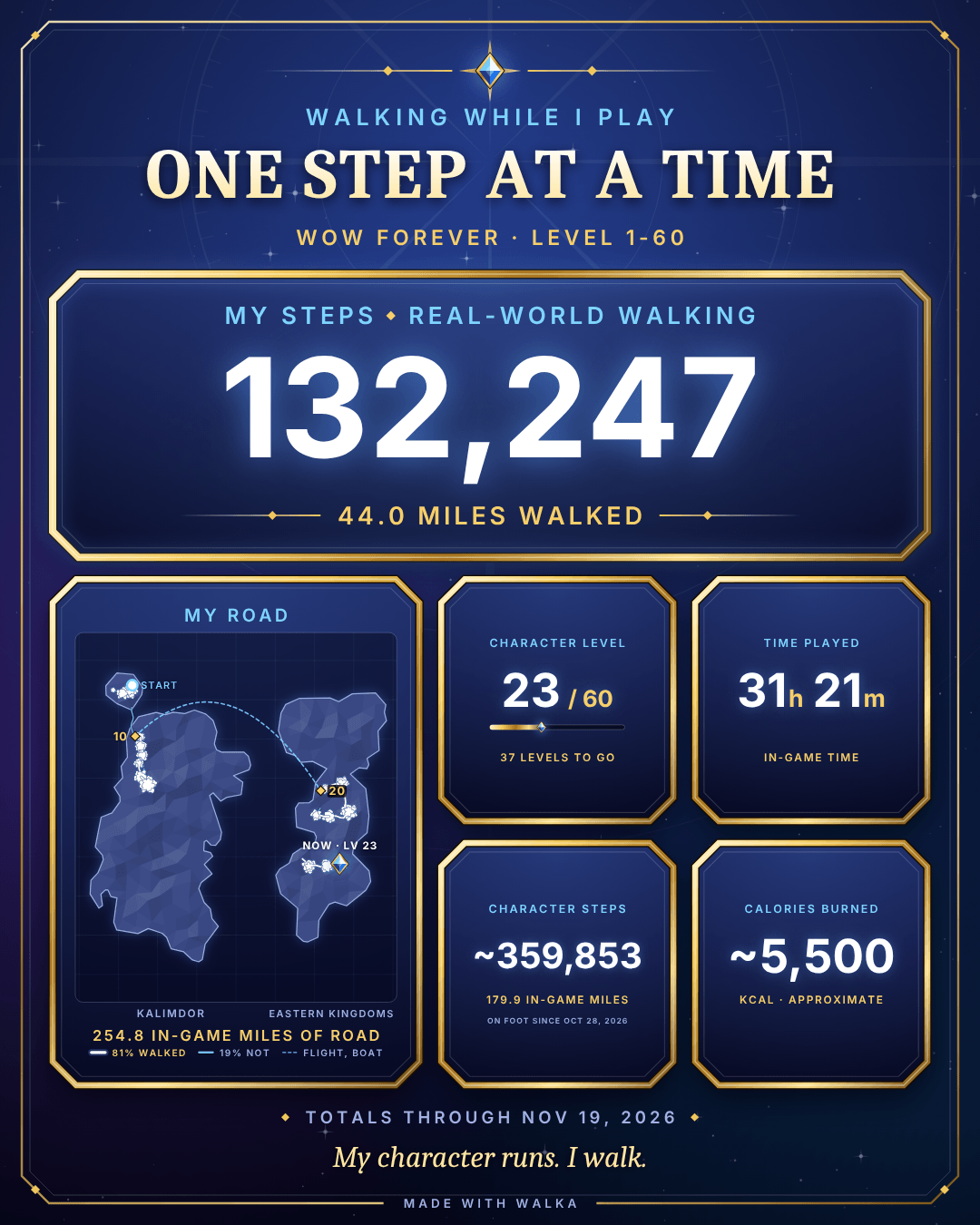
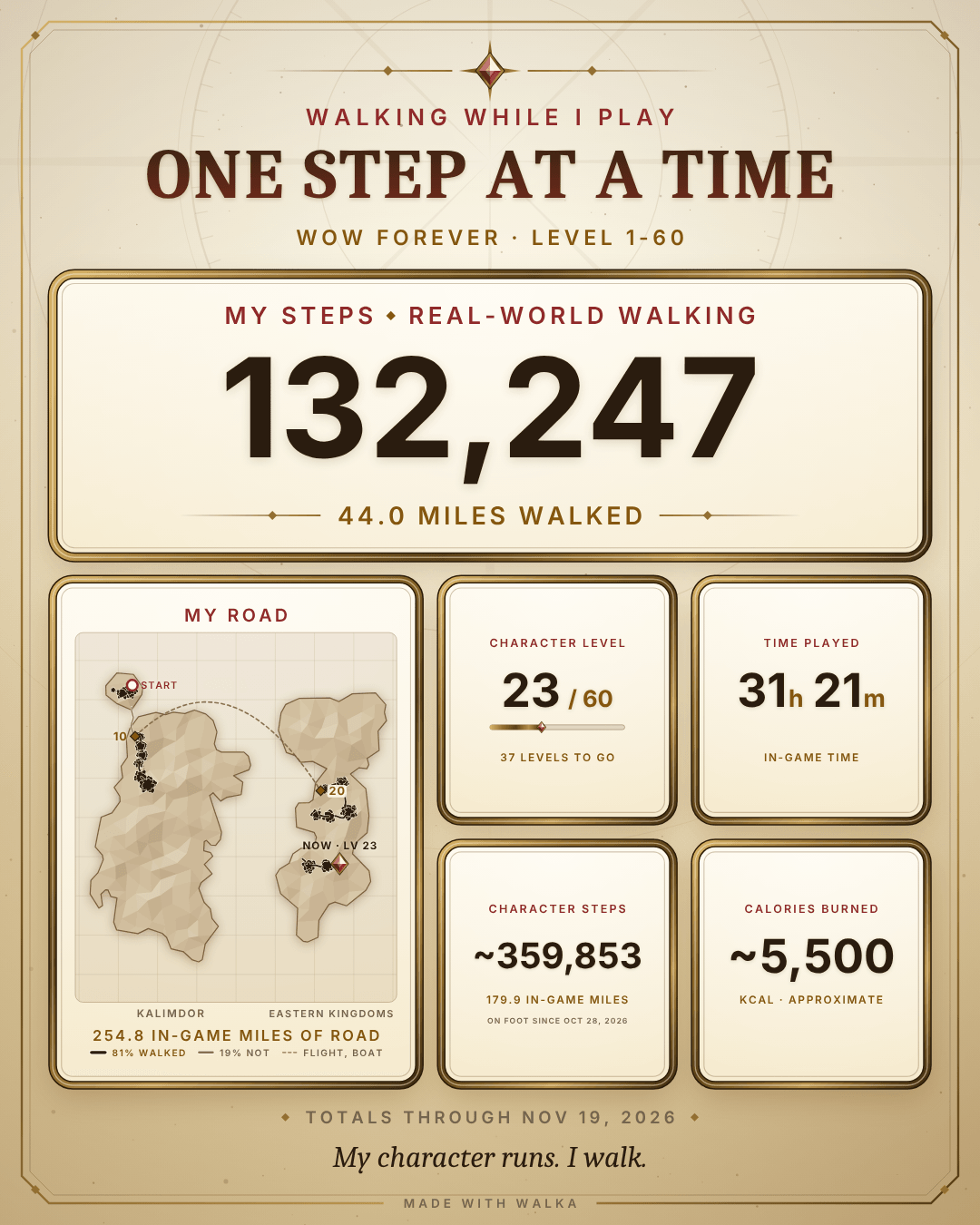
Your journey, and a picture to share
Walka keeps a record for every character you play: the level it has reached, its time played and how far it has
travelled on foot - and next to that the real walking you did while playing it. /walka journey shows it in game, and the dashboard's Share page turns it into a
picture you can post.
Sapphire
Ember
Wildwood
Frost
Parchment
- Log in with the companion running. The character's numbers reach the companion within about ten seconds (over the same strip as everything else) and are remembered there, so the picture can also be made later, with the game closed.
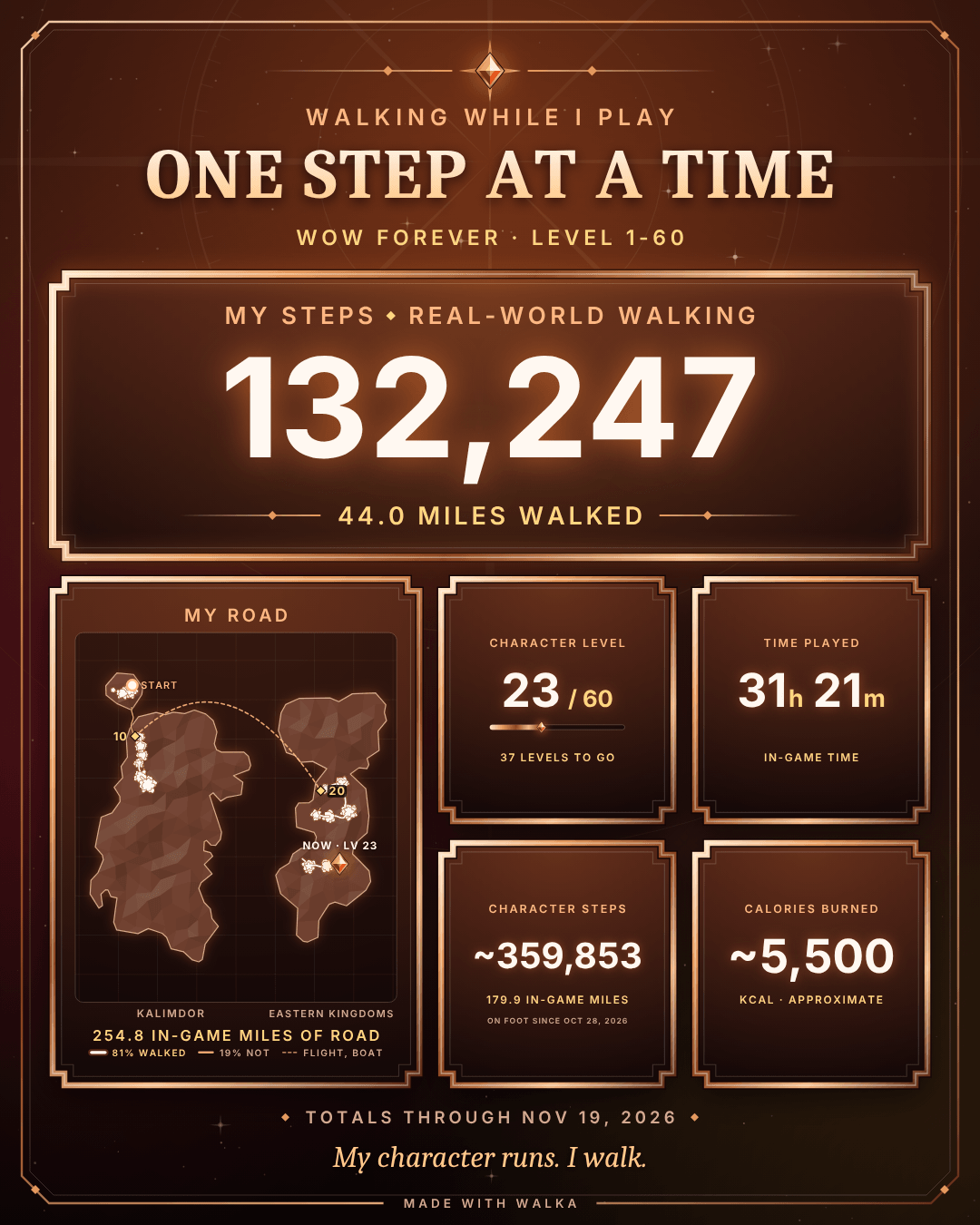
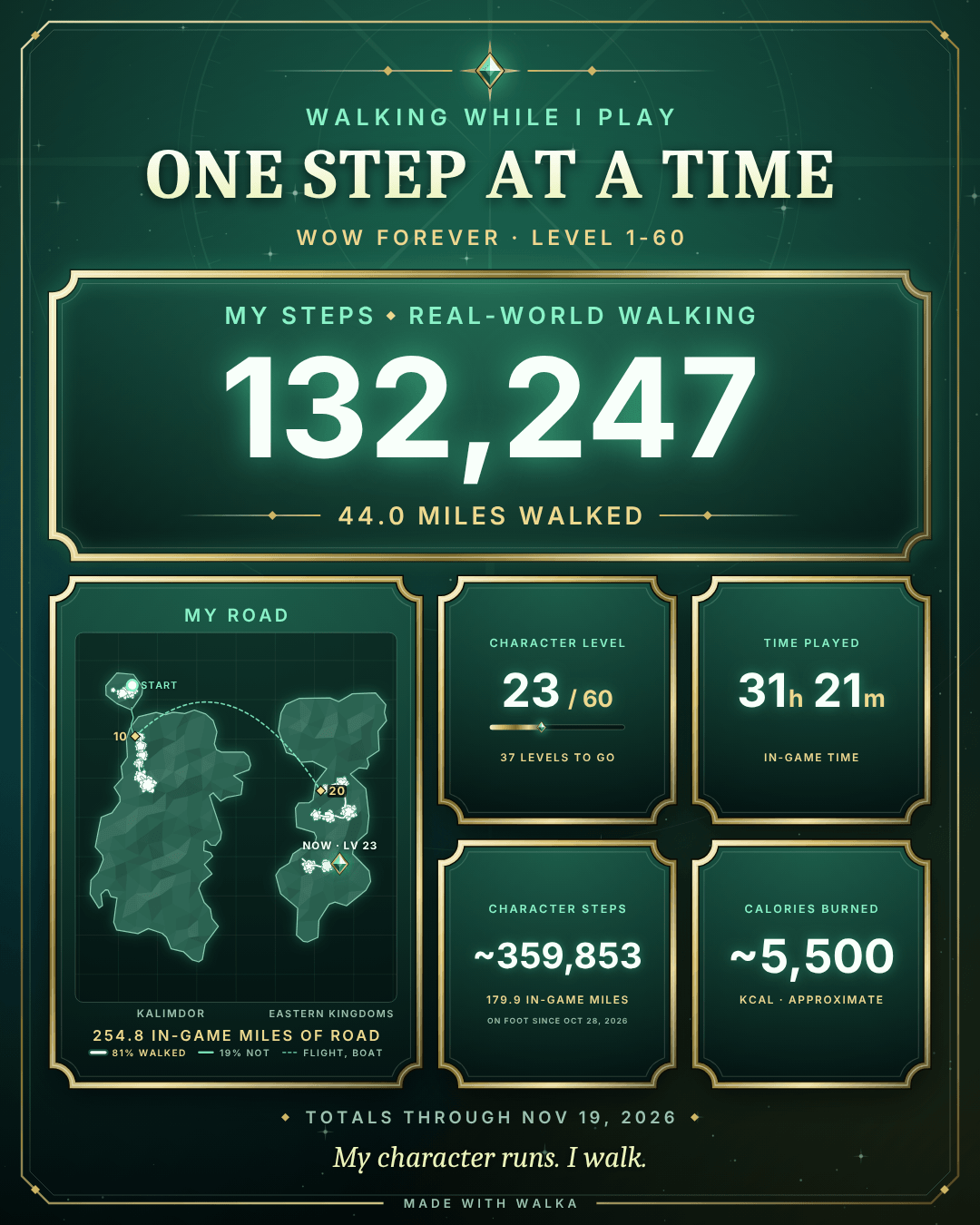
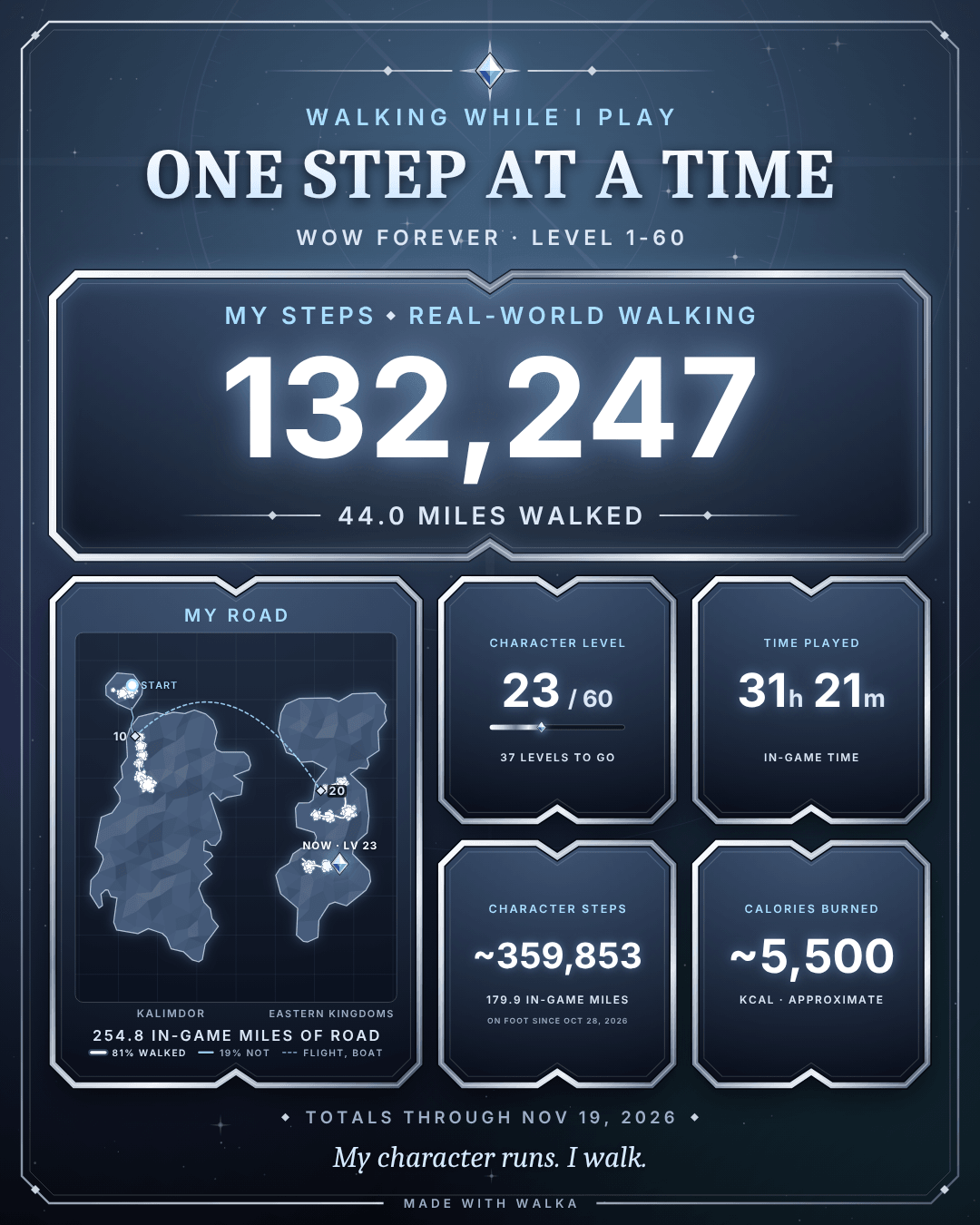
- Dashboard → Share. Pick the character if you have several, change the words, tick what should be on the picture, and choose a theme (Sapphire, Ember, Wildwood, Frost or Parchment) and a size: portrait 1080×1350, square 1080×1080, story 1080×1920 or wide 1200×675.
- Download PNG - or Copy image and paste it straight into a post or a chat.


What is on it
| On the picture | What it is |
|---|---|
| My steps | Your real-world steps, and under them the distance you walked. With This character's walks these are the walks you did while playing that character, as the addon counts them; with All my walks they are everything the companion has recorded, with any game or none. |
| My road | The road your character has travelled, as a line: see The road on the picture. |
| Character level | The level, and the level cap of the game. |
| Time played | The game's own /played for this character. |
| Character steps | How far the character has gone on foot since Walka began tracking it, as steps, with the in-game distance under it. |
| Calories | The same estimate as everywhere else in Walka (see Calories and steps), rounded. |
| Totals through ... | The day the numbers were last received from the game. |
A ~ in front of a number means "about":
- Character steps are a convention. The game does not count steps, so Walka says a character takes 2,000 steps to the in-game mile of 1,760 yards - 0.88 yards a step. "On foot" is moving while not mounted, not on a flight path, not flying and not swimming; running back as a ghost and jumping count. In combat, where the game hides the exact speed, the addon's estimate is used. Distance is counted from the day the addon was installed, not from level 1.
- Calories are always an estimate.
- Your own steps carry a
~only while part of them is still the addon's estimate, until the game has loaded what the treadmill measured (Sync, or the next login).
The road on the picture
The road the addon records is drawn on the picture over a small map of the continent - not the game's map, but a low-poly drawing of Walka's own.
- The stretches you walked on the treadmill - a walking session was running in the game - are a bright line; what the character travelled without one is the same line in a quieter colour; flight paths are fine dashes. A key under the map shows a piece of each kind of line with what it means - and how much of the road you walked for real.
- START marks where the road begins, a gem marked NOW with the character's level where it is, and a small numbered stud every tenth level reached on the way.
- Under the map: the length of the road in in-game miles (flights not counted).

The road is far too much for the strip on the screen, so it takes the slow way: the game saves it when you log out
or type /reload, and the companion reads it from the game's own file. So the road on the picture is
as of your last logout or /reload - the Share page says when that was - while the numbers next to it
are live. Type /reload before you make the picture and both are current.
The file is only ever read, never changed. Untick My road and the picture is as it was without it.
Private by default
- The picture is drawn on your computer, from numbers that are already on it. Nothing is uploaded and nothing is posted for you.
- The road is read from a file on your computer and goes no further than the page that draws it. On the picture it is a line on a simplified map and the names of the continents (or of another land your road is on, such as Zephras Isle) - no zones, no place names, no coordinates.
- Your character's name, and the small line with your weight and average pace, are off until you tick them. The realm never leaves the game: the companion is only sent a number that tells your characters apart.
- The downloaded file is named after the date, never after the character.
- The design is Walka's own and is drawn by the page itself: no game artwork, logos or fonts are used. The continents on the map are Walka's own drawing too (see the third-party notices for how their outlines were made).
The road map
From the moment the addon is installed it keeps the road your character travels - install it before you start a
character and the road begins at level 1. It is drawn on the game's own world map: open the map
as you always do (or type /walka map, or pick Road map in the HUD's right-click menu) and the
road is on it, on every map of the world - all of Azeroth, a continent, or a zone in the game's full detail.
What the colours and the brightness mean:
- the road is coloured by level, a colour for every ten levels;
- the stretches you walked on the treadmill - a walking session was running - are bright, with a soft glow; what your character travelled without one is dimmer;
- flight paths are thin and pale;
- it lies over the map's picture and under what the map marks (quest icons, your arrow), and it takes no clicks: the map works as it did.
What is recorded: a point every twenty yards (fewer on flight paths, more where the road bends). Nothing while you stand still, and nothing inside dungeons, raids and battlegrounds - the game does not say where you are there. A road from level 1 to 60 comes to about a megabyte.
Where it stays: it is saved per character with your other addon settings and never leaves your computer. The companion reads it there, to draw it on the Share picture.
Switching it off: /walka road off stops the recording (on starts it
again); what is recorded so far is kept. To hide the road and keep recording, use the small Walka road button in the top-left corner of the map, or /walka map off and /walka map on. The options page (Your road) has these as tick boxes.
The way the road is recorded and drawn follows Road to Sixty by Jordan Burch (MIT licence, see the third-party notices) - an addon made for exactly this, with a replay of the whole journey, a journal of quests and kills, and much more. It runs fine next to Walka.
With OpenMap installed the road is drawn on OpenMap's map in the same way. Nothing has to be set up, and nothing of OpenMap is in Walka: it only calls OpenMap when OpenMap is there.
Heart rate, other apps, other games
Heart rate (optional)
Any Bluetooth heart-rate sensor works: a chest strap, an arm band, or a watch that can broadcast. Dashboard → Settings → Heart-rate sensor → Scan. Watch-to-Windows Bluetooth is known to be hit-and-miss, so a cheap Bluetooth chest strap or arm band is the dependable option.
Heart rate is shown live and stored with each walk. It only drives the calorie figure when you have entered age and sex and your heart rate is in real exercise territory (above 60% of the maximum for your age, for a minute). At desk-walking heart rates the heart-rate formula would read up to double.
Garmin Connect, Strava and others
Each walk can be downloaded as a TCX file (dashboard → History → a walk → Download TCX) and imported by hand. On connect.garmin.com that is Activities → Import. Imported walks show time, distance, calories and heart rate; Garmin does not add their steps to your daily step total.


Other games, or no game
Nothing to set up: the companion records a walk whenever the belt moves. Start the belt with the treadmill's remote and play anything, or nothing. Such a walk is in the dashboard's history as No game session, and in your totals.
Such a walk is at your own risk like any other, and Walka has not yet been tried on a real walking pad: see the disclaimer.
Where to read more
- The README Everything on this page and more, with troubleshooting.
- docs/SAFETY.md What Walka does to a treadmill, all of it, and how that is made sure of.
- docs/PROTOCOL.md The strip, bit by bit, and when the companion believes what it reads.
- docs/HARDWARE.md What is known about reading the Strol 2E and other treadmills, and what still needs confirming on a real unit.
- Safety What Walka is and is not, what to do before you walk, and what has and has not been verified.
- FAQ Short answers to common questions.
- The disclaimer The whole of it.